Compatible Pump
Compatible Pump
Before You Start
- Omnipod users: Omnipod Pod Types of Omnipod 5, DASH and Eros (Classic) are compatible
- Medtrum Nano users: both 200 U and 300 U patches are supported
- Medtronic users: 10 minutes to put a battery in and look at model and firmware
- Dana users: you must be willing to build a feature branch and understand the known issues
- Tandem Mobi users: you must be willing to build a feature branch based on Loop 4 development code and follow the open beta on zulipchat
Summary
- If you use Omnipod - your pump is supported
- If you use Medtrum Nano - your pump is supported
- If you have a Medtronic pump, check the Medtronic Pump Version list to ensure compatible model/firmware
- For expert testers only, must build a special branch:
- Tandem Mobi - in open beta
- If you use Dana - check which kind
FAQs
- "How can I find a compatible Medtronic pump?" Refer to Finding a Medtronic Pump.
- "What are the differences between Medtronic pump models?" This question is answered in the Extra Details section.
- "But what about the other types of pumps?" Only the pumps listed in Summary work with the Loop app at this time.
- There are other open-source closed loop options such as AAPS: Android Artificial Pancreas System and OpenAPS that support other pumps
- "Can I change the firmware of my Medtronic pump?" No.
Pumps Compatible with the Loop app
These types of pumps are compatible with the Loop app.
- Omnipod Classic (or Eros) Pods
- Omnipod DASH Pods
- With the v3.14.11 or newer release of the Loop app, the issues with iPhone 16/17e are improved
- See caveat about iPhone 16 and 17e
- Omnipod 5 Pods
- Medtrum Touchcare Nano (v3.14.2 or newer)
- Older Medtronic pumps
Some pumps need a special branch. Only test them if you are willing to update often, pay close attention and go back to open loop when needed.
- Dana-i / DanaRS-v3 (new pump manager, work in progress, included in
feat/all-managersbranch) - Tandem Mobi (in open beta, work in progress)
Omnipod Pumps
Reminder and Disclaimer
The use of Omnipod pumps with the Loop app is not supported by Insulet, although they are aware it is happening. Do not call Insulet asking for help with your Loop app build, setup, or operation. You are fully responsible for your use of the Loop app and do so at your own risk. Please read these documents and familiarize yourself with the Loop app before using it.
Omnipod 5
Omnipod 5 Pods are supported; v3.14.11 or newer strongly recommended
Omnipod DASH
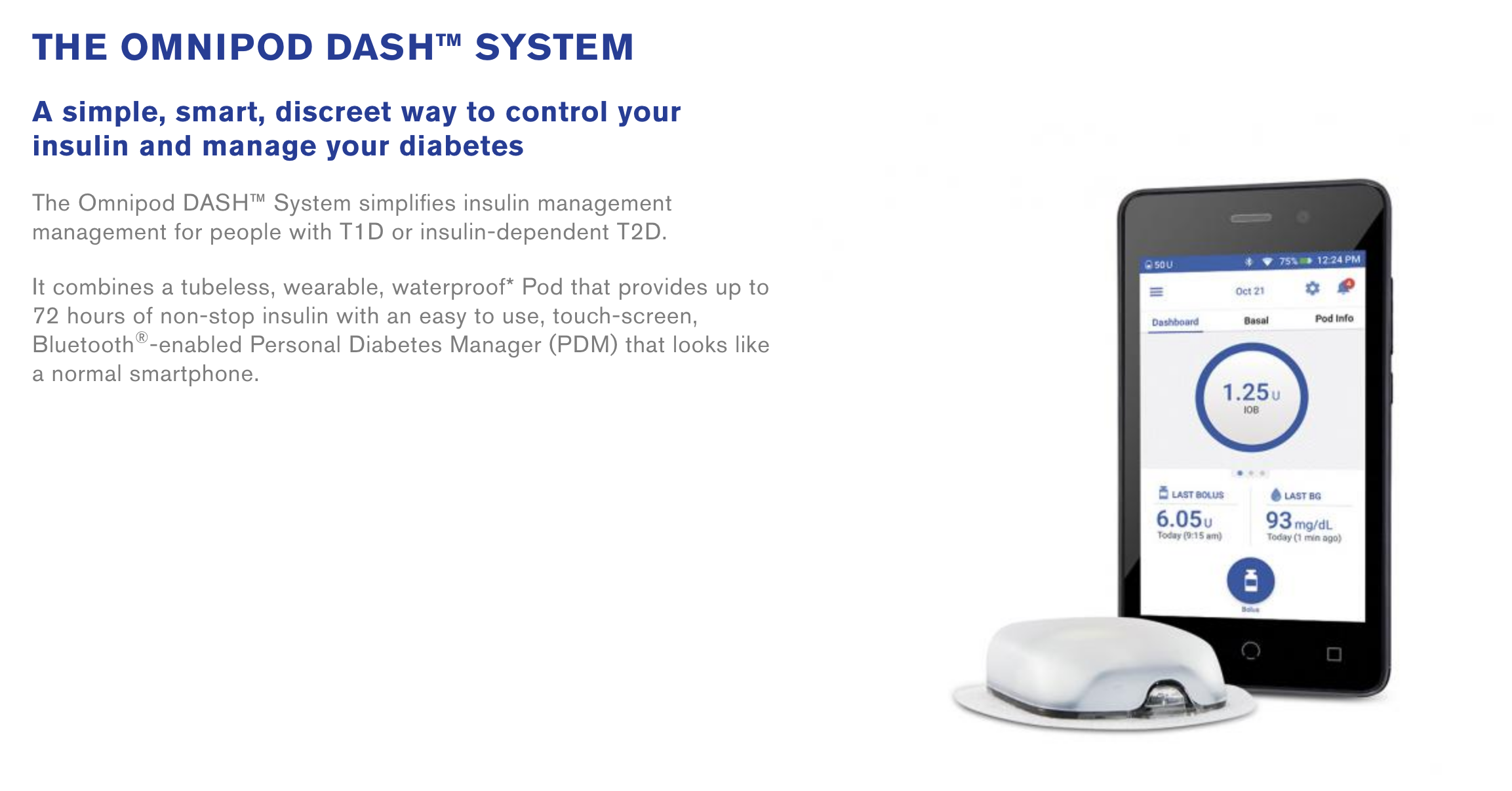
The DASH system has the newer, slimmer locked-android Personal Diabetes Manager (PDM) and built-in BLE communications in the Pod, so there is no requirement for a RileyLink compatible device.
A RileyLink-compatible device is not required to use DASH with the Loop app. The communication with your iPhone uses Bluetooth.
Omnipod Eros
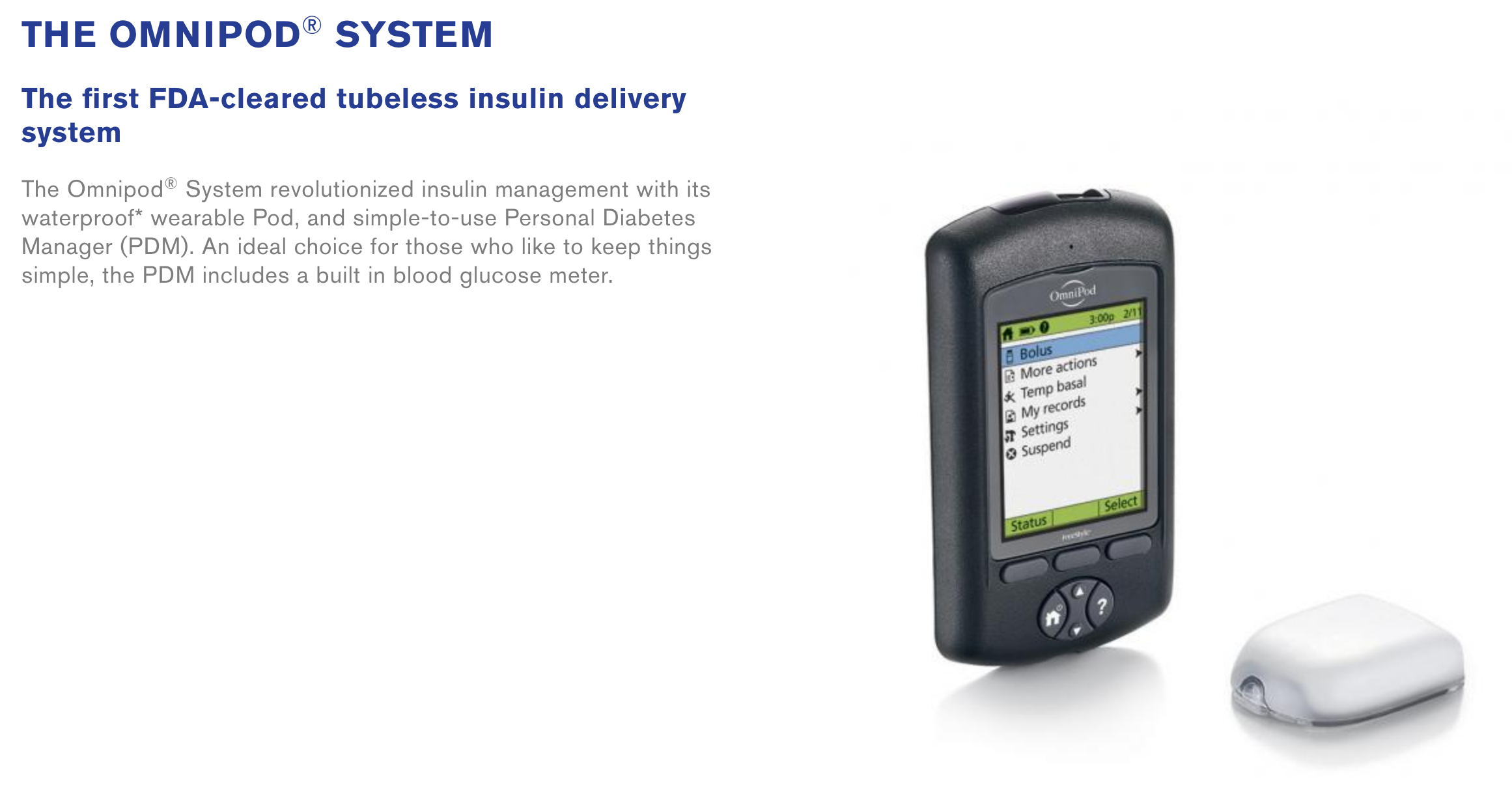
Eros Pods (also known as Gen 3 or Classic) were launched in 2013 and continue to be sold by Insulet in some countries. Insulet stopped providing Eros Pods in the US end of December 2023. As far as we know, there are no timelines announced for the discontinuation of Eros Pods for other countries. Insulet doesn't specifically call these "Eros" anymore, they just use the term "Omnipod system". For clarity, from Insulet's webpage:
Alternative Names for Omnipod Eros Pump and Pods
Eros pump is also known as Classic, or UST400, or Omnipod Insulin Management System.
Pharmacy sites sometimes may refer to the Eros Pods as Gen 3 but they are the same Pods.
Eros system has a big Personal Diabetes Manager (PDM) that does not look like a phone.
Medtrum Nano
Medtrum support was added to version 3.14.2.
All versions are supported!
Both 200U (MD0201 & MD8201) and 300U (MD8301) version are supported with v3.14.2 or newer of the Loop app.
Every Medtrum patch pump has built-in BLE communications. Therefore, no RileyLink-compatible device is needed to use Medtrum patch pump with the Loop app.
The Medtrum patch pump is the second tubeless pump option available to the Loop app. The patch pump is 13.8gram, 40.5mm X 31.5mm x 11.5mm, making it the smallest and most discreet patch pump on the market as of now. It uses a steel cannula, instead of the Teflon cannula of the Omnipods, with a virtually painless insertion.
Check Medtronic Pump Version
- Medtronic 515 or 715 (any firmware)
- Medtronic 522 or 722 (any firmware)
- Medtronic 523 or 723 (firmware 2.4 or lower)
- Medtronic Worldwide Veo 554 or 754 (firmware 2.6A or lower)
- Medtronic Canadian/Australian Veo 554 or 754 (firmware 2.7A or lower)
If you have one of the pumps listed above, you are good to go on Loop! Congrats!
Extra Details on Medtronic
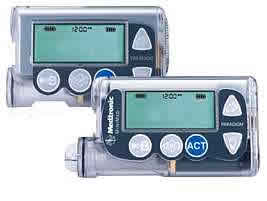
There are a number of Medtronic insulin pumps manufactured between 2006 – 2012 which are compatible with the Loop app. Compatibility has two requirements: (1) pump model and (2) firmware.
Medtronic Pump Model
To determine your pump model, look at the back of your pump to locate the sticker similar to that shown in the graphic below. On the right-hand side of the sticker, it says REF MMT-XXXXXX
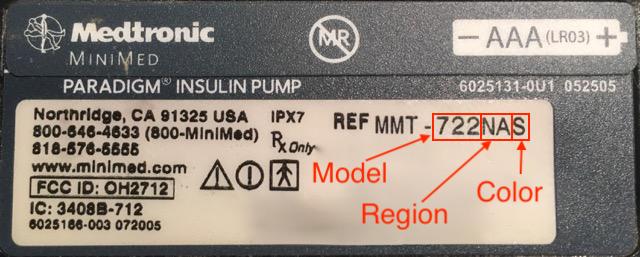
- MMT ---> Pump Manufacturer Model (MiniMed Medtronic)
- 722 ---> Pump Model Number
- NA ---> Pump Region (NA=North America, CA=Canada/Australia, WW=Worldwide)
- S ---> Pump Color (S=Smoke, L=Clear/Lucite, B=Blue, P=Pink/Purple)
Some pumps may have an “L” or “S” or "R" before the pump region, e.g. a model number like MMT-722LNAS. This does not affect compatibility with the Loop app.
Medtronic Pump Firmware
A pump’s firmware is the internal software that runs your pump. Older Medtronic firmware allows the Loop app to act as a “remote control” to set temporary basal rates and report back pump data. Newer firmware disabled that “remote control” access and therefore cannot be used with open-source automated insulin delivery (OS-AID) systems. There is currently no ability to downgrade a pump’s firmware or replace it with older firmware. Before you buy a used pump, make sure the pump firmware is compatible.
The firmware on all 515/715 and 522/722 model Medtronic pumps is compatible with Loop. You will only need to check the firmware version for 523/723 and 554/754 model Medtronic pumps.
- Medtronic 515 or 715 --> any firmware
- Medtronic 522 or 722 --> any firmware
- Medtronic 523 or 723 --> firmware 2.4 or lower
- Medtronic Worldwide Veo 554 or 754 --> firmware 2.6A or lower
- Medtronic Canadian/Australian Veo 554 or 754 --> firmware 2.7A or lower
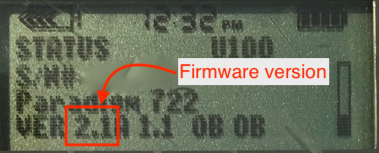
To find your pump’s firmware you will need to power it on. If the pump has not been powered on for some time (i.e., has been in storage without a battery for a while), it will run through a start-up count and the firmware version will appear on the bottom right of the pump’s screen. Don’t turn away, as the version number will only be displayed for a little while before the pump moves to other information displays.
If the pump has been active recently or has a reservoir installed, follow these steps:
-
Press the
 button on your pump.
-
Scroll down with the
 button to the bottom of the status display.
-
Read the bottom line of the display.
Medtronic Pump Differences
If you are in the position of being able to choose from different pump models, there are some slight differences between the Loop-compatible Medtronic pumps that may influence your decision.
500 vs 700: The difference between the Medtronic 500 series and the 700 series pumps is the size of the insulin reservoirs. The 500 series pumps use a 180-unit reservoir, and the 700 series pumps use a 300-unit reservoir (or smaller 180-unit reservoir, if you want).
x15/x22 vs x23/x54: The noteworthy differences between the x15 and x22 pumps versus the x23 and x54 series pumps are:
- The x23/x54 pumps will allow for smaller insulin deliveries in certain situations if the smaller scroll rate is selected in the Bolus>Setup>Scroll Rate menu.
| Pump Model | Basal increments | Bolus increments | Range |
|---|---|---|---|
| 515/715and522/722 | 0.050.1 | 0.10.1 | deliveries of less than 10 unitsgreater than 10 units |
| 523/723and554/754 | 0.0250.050.1 | 0.025 0.05 0.1 | between 0.025 to 0.975 unitsbetween 1 to 9.95 unitsgreater than 10 units |
-
Additionally, because of the way the Loop app fetches information from the pump, the x23/x54 series of pumps are slightly better at conserving battery life through the use of the MySentry packets to collect information from the pump. x22 pumps do not use MySentry.
-
The x23/x54 series pumps are also faster at delivering boluses greater than 10 units. On an x23 pump, a 13-unit bolus takes 5:00 minutes to complete. On an x22 pump, a 13-unit bolus takes 8:40 minutes to complete.
Sooil Dana pumps
You must build a feature branch to use Dana pumps
Dana is supported in feat/all-managers feature branch.
- You must follow zulipchat DanaKit topic
Read these pages in LoopDocs:
Every Dana pump has built-in BLE communications. Therefore, no RileyLink-compatible device is needed to use Dana-i / DanaRS-v3 with the Loop app.
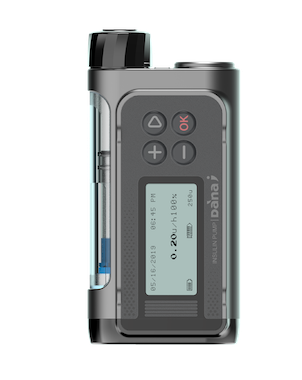
Dana-i
The Dana-i is the latest and greatest from the Korean pump manufacturer Sooil, released in 2020.
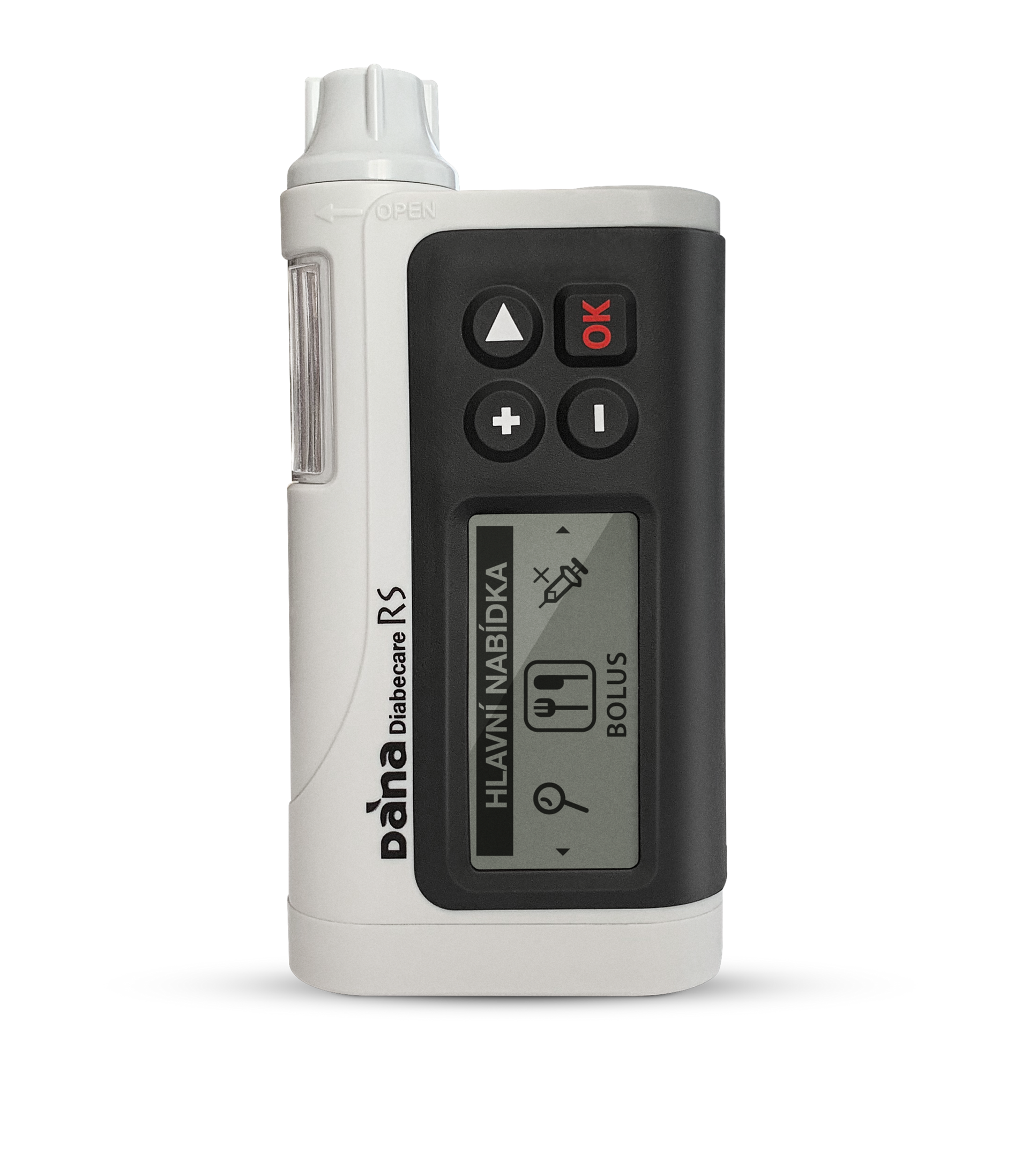
DanaRS
DanaRS pumps with firmware version v1 are not supported. Only firmware version v3 and newer are supported with the Loop app. Check here to see how to check your firmware version.
Tandem Mobi
You must build a feature branch to use Tandem Mobi
Tandem Mobi is in open beta. Use the feat/tandem-next-dev feature branch.
- You must follow zulipchat Tandem Mobi Open Beta topic
Read these pages in LoopDocs:
- Add a Tandem Mobi Pump
- Status for
next-devBranch: thefeat/tandem-next-devbranch is Loop 4 development code
Reminder and Disclaimer
The use of the Tandem Mobi with the Loop app is not supported by Tandem Diabetes Care. Do not call Tandem asking for help with your Loop app build, setup, or operation. The Tandem Mobi pump manager, TandemKit, is open-source code that is not affiliated with Tandem.
The Tandem Mobi has built-in Bluetooth communications. Therefore, no RileyLink-compatible device is needed to use the Tandem Mobi with the Loop app.
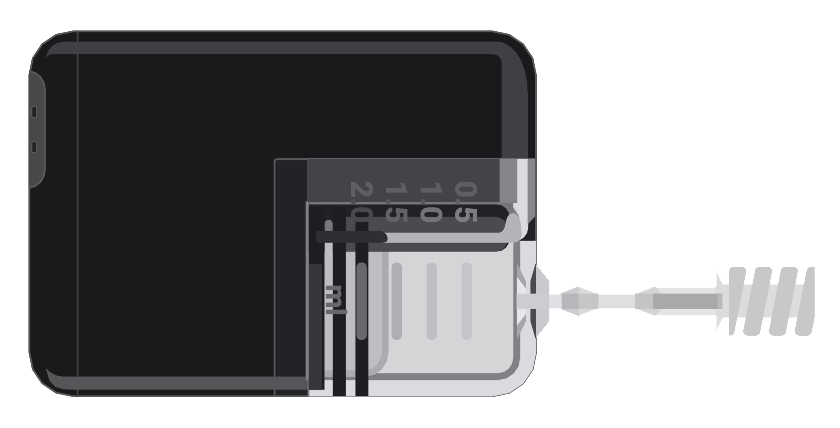
The Tandem Mobi is a small, 200 U tubed pump from Tandem Diabetes Care.
Before you add the Tandem Mobi to the Loop app, know that:
- The Tandem Mobi can be controlled by the Tandem Mobi app or by the Loop app, but not by both
- When you add the Tandem Mobi to the Loop app, Control-IQ on the pump is turned off so the Loop app can control insulin delivery
- You need the pump's charging pad and the 6-digit pairing code (PIN) found inside the cartridge area of the pump to pair the pump with the Loop app
- The pump beeps or vibrates each time the Loop app sends a bolus or temp basal command, whether automatic or manual; the current Mobi firmware has no silent option for commands sent over Bluetooth (see Mobi Sound Settings)
For step-by-step instructions, see Tandem Mobi Setup.
Next Step: Compatible CGM
Next, check that you have a Compatible CGM.